

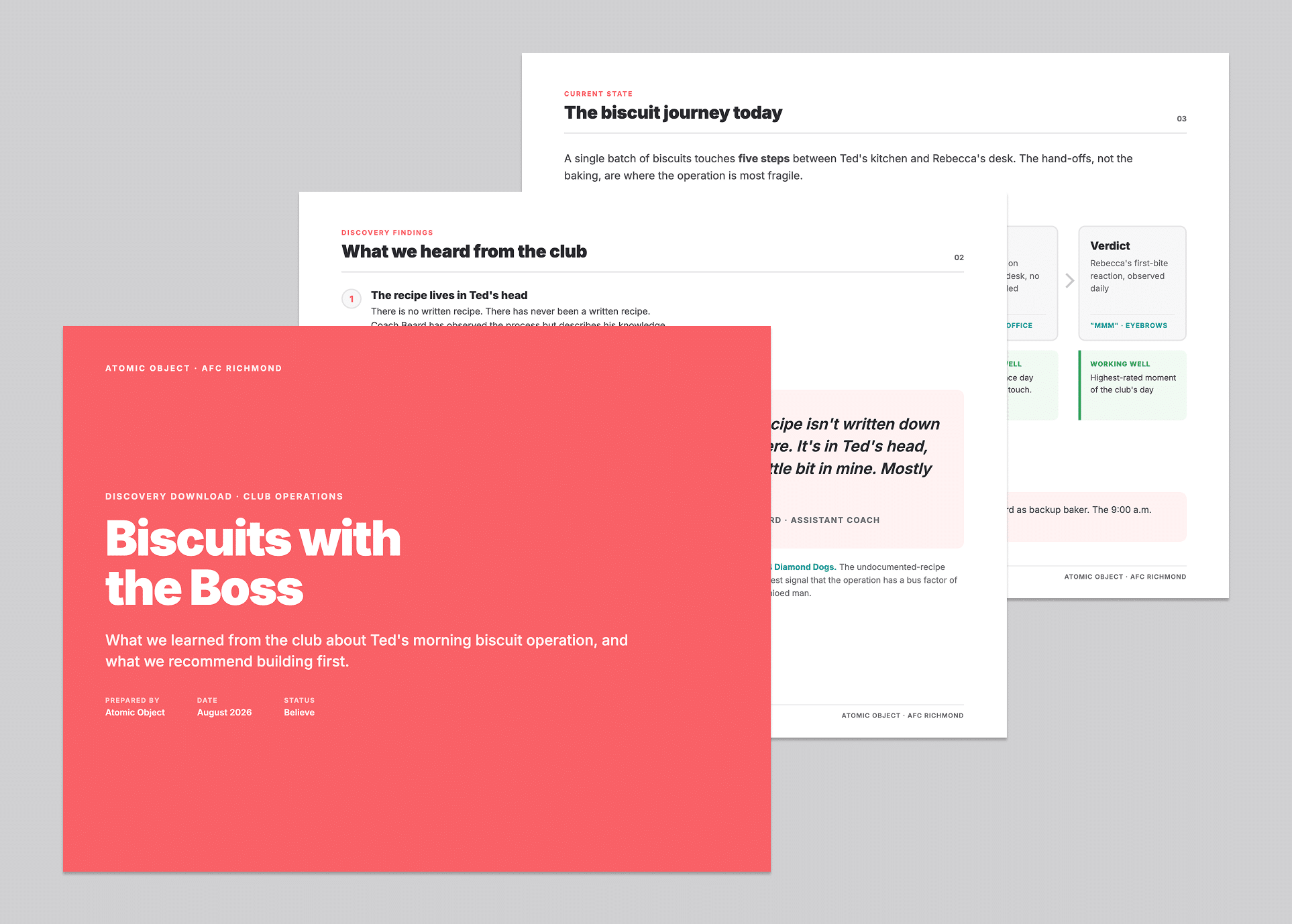
I’ve made a lot of slide decks for design work presentations over the years. It started with PowerPoint, where one minor movement of an image or paragraph could mysteriously break the entire page. I then moved to Google Slides, Miro, and Figma Slides, with each feeling slightly better than the last, but one uncomfortable truth remained: I spent way more time actually making the deck over the more important work of figuring out the structure and content itself.
Whether it’s inserting a text box, fixing alignment, selecting which key words to italicize, or nudging an image, back and forth dozens of times to determine the perfect location, those small changes all add up. The result is minutes turning into hours where I’m just clacking around a keyboard instead of doing the actual, valuable work of deciding how to present what I learned, and what I’m recommending to the client and/or other key stakeholders.
Over the past few months, I’ve moved almost all of my presentation work to HTML slide decks built with Claude (my current AI of choice). The process has been faster, cleaner, and more collaborative.
Why HTML?
HTML is great because it’s easy for AI to read and write. Every slide, every headline, and every bullet is readable text, which means Claude can generate it, restyle it, and revise it cleanly, without a significant amount of back and forth.
It’s also easy for presentations. Just open any browser in full screen, advance “pages” with the arrow keys, and it looks exactly the same on every machine because it’s a webpage. You can also easily add things like a timer floating in the right corner or a notes section at the bottom to document client comments.
So how do I actually make one? Here’s the workflow.
Step 1: Create a Deck Template
The first step is teaching AI what your decks should look like.
At Atomic, we wrapped our format into an AI implemented skill that contains the brand colors, typography, and the slide layouts we often reuse. Of course, templates have long existed in PowerPoint, Google Slides, etc., but those stay static and can quickly become clunky if you have to alter them. Here, the template is a starting platform for the AI to iterate on when given our content inputs. And once it’s set up, I can be assured that the outputs will remain largely consistent even as my content differs.
If you don’t want to build a skill, that’s totally okay. Even a plain description works: hex codes, fonts, a couple of layout rules. Describe it once, save the description, and you can continue using it across projects.
Step 2: Dictate the Content, Skip the Clicking and Typing
Here’s where it gets fun. I still author the deck. I’ve just stopped typing it, formatting it, and reformatting it.
Now, before you read that as “oh, this guy is presenting AI slop to his clients,” let me be clear about what I’m actually doing: I’m not asking Claude to straight up write my presentation. I voice-record myself dictating the first pass: the high level goal of the deck, what each section is, what the point of each slide is for, often the actual sentences I want on the slide. Meanwhile, I have our research material open on a second screen, and pull from that as well:
“Bring in the persona summaries here, using our exact wording for a headline of each.”
“There’s a quote in the interview synthesis about the cheat sheets, that should be prominently highlighted on this slide and italicized”
“Pull the four functional requirements from the requirements doc, verbatim.”
Claude’s job is assembly. It takes my dictation, grabs the material I pointed at, and lays it all into polished slides. What I don’t have to do anymore is the formatting, typing, text-box wrangling and image nudging. I keep the authorship but remove the data entry annoyance.
The results aren’t perfect, and that’s the point. It gets my content on the screen for the next step which is….
Step 3: Edit by Talking, Together
With this rough first draft quickly assembled, I can get content in front of my teammates faster, and earlier, for second opinions and revisions.
When my team reviews a deck, we get in a room (or a call), pull it up, and just talk through each slide thoroughly while recording:
“This slide’s doing too much.”
“I don’t like the wording for this header.”
“We need an alignment check after the requirements section.”
No formal notes needed, as long as we speak clearly and plainly for the transcription.
Afterwards, I upload the transcript to Claude and watch the revisions update in front of me. Slides get cut, added, and rewritten exactly as discussed, all while I monitor the results.
The real-life version of this: an hour before a client presentation, my team did a final pass on the deck. Recorded conversation for maybe twenty minutes where we cut an entire slide, added a new one, and entirely rewrote the “next-steps” section. Last year, that deck needed to be locked and reviewed at least the night before the meeting. Now an hour out is more than enough time to fully align and revise with time left to rehearse.
*Worth noting: I usually do a solo dictated pass like this first, so the group is reacting to a deck I’ve already tightened once.*
Step 4: Present it, then Close the Loop
I present straight from the HTML in a browser. During the meeting, I capture recorded feedback along with any handwritten notes or chat comments.
Afterward, it’s the same trick as before: the meeting notes or transcript go to Claude with the deck, and the updates the client brought up get applied. The deck stays alive as the source of truth instead of drifting the moment the meeting ends.
And when someone wants the deck as an attachment? Export the HTML to PDF, one slide per page. We’ve got that scripted too, so it’s a one-liner. The client can have a PDF in their inbox as soon as they need it.
Where it Still Struggles
The weakest part of this process is anything heavily visual that I try to create within the HTML like graphs, infographics, and diagrams. You can describe a chart to Claude, but it rarely gets it right on the first pass: The spacing’s often off, labels might be misaligned, and white space can be all over the place. Text-based slides usually come out 95% done, especially if you have already set up a solid format skill. Diagram slides come out more like a solid first draft that needs granular polish and some back and forth within the chat dialog.
Big Picture
The time I used to spend nudging images, I can now spend on making sure the bigger questions are being thoroughly answered: What am I presenting? What is my suggestion? Is there a better way to lay out my work and decision making? It also allows more time for collaboration with coworkers to talk through and revise the deck.
Give it a try and see what you think. Here’s a sample: https://atomicobject.github.io/biscuit-deck-demo/