


Have you ever wondered if there was an easier way to sort imports automatically in your Angular project? Disorganized imports make code harder to read, slow down code reviews, and cause unnecessary merge conflicts. Sorting them manually requires a lot of effort — what if you could automate it?
Introducing simple-import-sort
simple-import-sort is an ESLint plugin that can be installed as an npm package. It allows ESLint to automatically sort and format your imports.
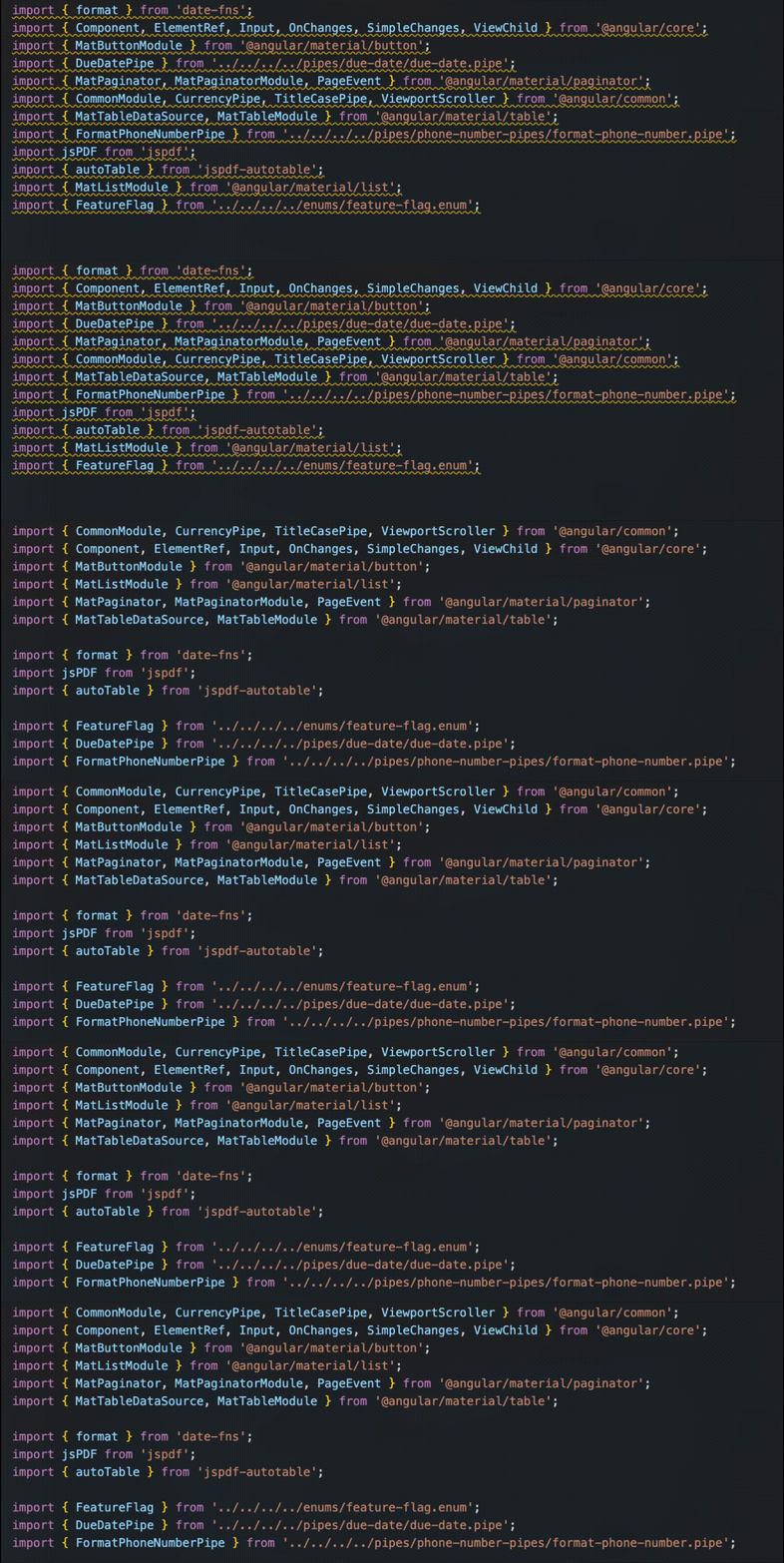
As seen in this example above, simple-import-sort allows us to set up rules to automatically format our imports on save. This allows us to keep clean and organized imports throughout our entire repo.
Installation
Before we can install simple-import-sort, the plugin requires ESLint to be installed in your repository. If you haven’t installed ESLint yet, follow the setup instructions in the ESLint Docs.
Once installed we can install the plugin by running the following command from your terminal:
npm install --save-dev eslint-plugin-simple-import-sort
Setup
After installing the plugin locate the eslint.config file in the root of your repository. Inside your config file, you will need to add the simple-import-sort config.
import simpleImportSort from 'eslint-plugin-simple-import-sort';

export default [
    {
        files: ['**/*.ts', '**/*.tsx', '**/*.js'],
        plugins: {
            'simple-import-sort': simpleImportSort,
        },
        rules: {
            'simple-import-sort/imports': 'warn',
            'simple-import-sort/exports': 'warn',
        },
    },
];
This is the most basic config for simple-import-sort that will enable automatic sorting of your imports. By default the plugin groups side-effect imports, then external packages, then everything else, then relative imports — alphabetized within each group.
Custom Grouping
Beyond the default groupings, we can optionally customize the import grouping further. You can customize this further by adding additional rules to the ESLint config. Let’s add the groups object to the 'simple-import-sort/imports' object in the config.
'simple-import-sort/imports': [
    'warn',
    {
        groups: [
            ['^@angular'],                    // 1. Framework
            ['^@?\\w'],                       // 2. External packages
            ['^@app', '^@shared'],            // 3. Internal aliases
            ['^\\.'],                         // 4. Relative imports
        ],
    },
],
This config groups your imports according to the rules you define. Adjust the groups to match your project’s import paths.
Enabling Automatic Import Sorting
The magic of this plugin happens when the imports can automatically fix themselves. Let’s look at a couple ways to do this.
1. Run eslint --fix from the command line. This will automatically run import formatting on all of the files on your project.
2. Setup autofix on save. Locate your .vscode/settings.json file and include this in the config.
"editor.codeActionsOnSave": {
    "source.fixAll.eslint": "explicit"
}
Once you add this config, VSCode will automatically apply the formatting whenever you save the file. Other editors will have equivalent settings for formatting on save.
A Small Note
Keep in mind that this plugin doesn’t work alongside any other import sorting plugin. This will cause the two plugins to get stuck in a loop, each reformatting the other’s output.
This includes ESLint’s default import sorter sort-imports. If you see this included in your plugins array, then you will need to remove it when adding simple-import-sort.
Enjoy Hassle-Free Import Sorting
That’s it! Give this a try and enjoy never sorting imports manually again. Keep in mind that this may require some trial and error, as every project is different, but this is a basic guide on how to get started with simple-import-sort.