


I’ve long been a fan of Joe Chrysler’s VPN-in-a-VM technique for dealing with VPN configurations that want to send all traffic from my laptop through the VPN. Using a combination of SSH tunnels and Automatic Proxy Configurations, it’s usually possible to send just the protected traffic through the VPN software running in a virtual machine – while keeping all your Zoom traffic, etc. out of the VPN.
But as well as it works, there are some rough edges to deal with. Not all applications work with macOS’s Automatic Proxy Configuration. For example, most command-line tools don’t. With some, you can specify a SOCKS5 proxy with an argument. However, even then, there’s the friction of having to do something different when accessing a protected host.
And the workaround for things that don’t work with SOCKS5 proxies (databases, etc.) has been to use SSH tunnels. That works well, but it means that all of the remote servers you use will be accessed through localhost and some random port that you’ve bound the tunnel to. It’s not the end of the world, but not ideal.
I decided it was time to see if there’s a better way and worked my way through a series of incremental improvements. I think I’ve landed on a really nice solution using WireGuard for selective traffic and macOS’s domain-specific DNS resolver capabilities (/etc/resolver) for resolving domain names.
The Setup
In a nutshell:
- Run a WireGuard peer in the VM (I’ll call this the server).
- Run a WireGuard peer on the macOS laptop (I’ll call this the client). Assign specific IP address ranges for only the traffic you want sent through the VPN.
- Use
iptablesin the VM to properly forward traffic from the WireGuard interface to the VPN client. - Add entries in
/etc/resolverfor any protected domain names, specifying the protected nameservers (behind the VPN).
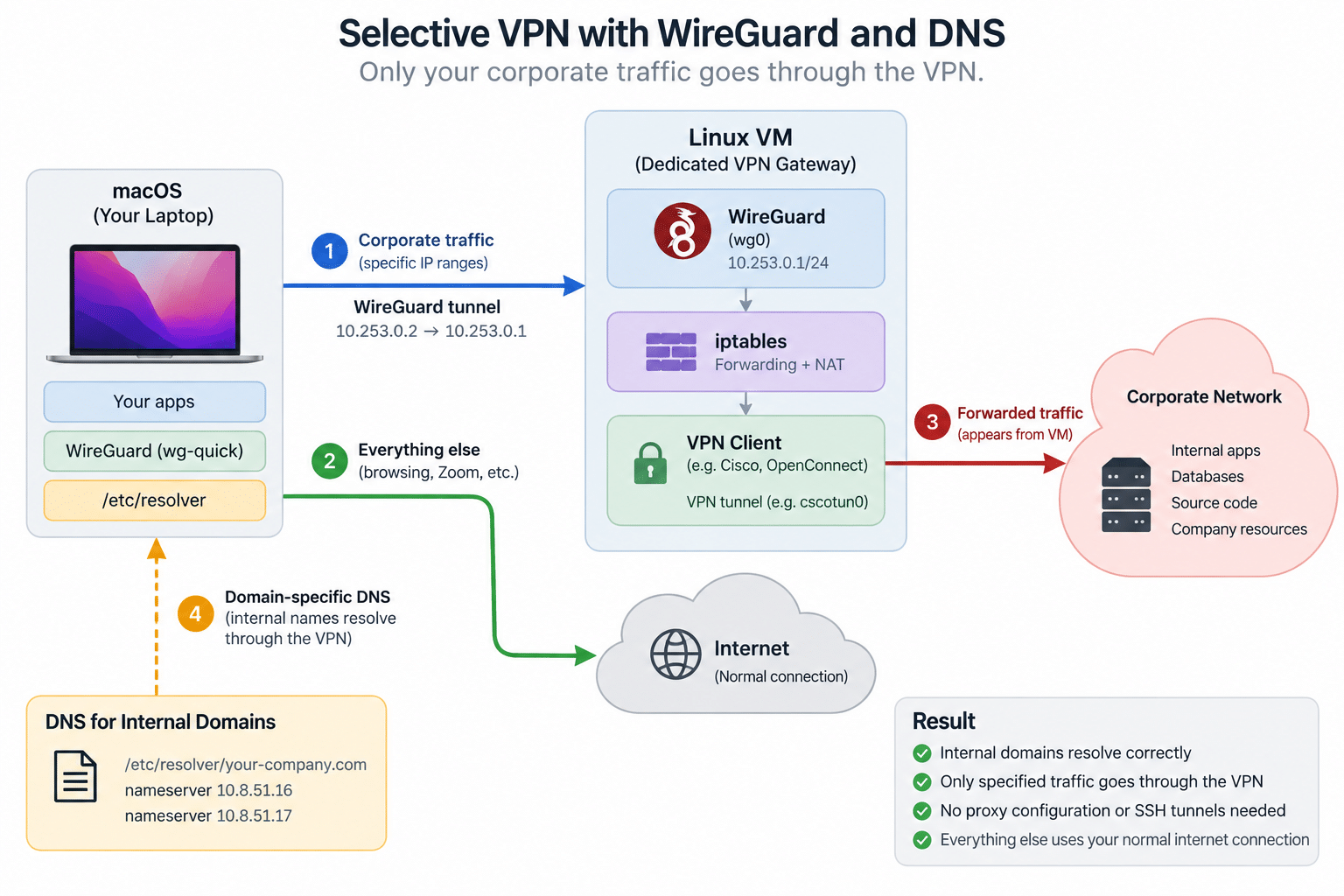
With this setup, you get proper domain name resolution for protected hosts. Additionally, there’s no need for proxy configurations or special tunnels. After connecting to the VPN (in the VM), only the traffic you specified in the WireGuard configuration will go through the VPN.
Caveats
A few caveats before I get into how to set this up:
- Linux VM – So far I’ve only attempted this strategy using VPN software running in a Linux VM. It’s possible the same thing could be done with a macOS VM (and maybe even a Windows VM??). I haven’t tried it, so I can’t say one way or the other. But if you’re using a Linux VM, it obviously means you need to have access to a Linux client for the VPN.
- VPN Client/Software – Getting this technique to work is likely very dependent on the VPN client software. I’ve done this now with two different types of VPNs, but I wouldn’t be surprised at all if there’s a client that locks things down in such a way that this just isn’t possible.
- The
wg-quickcommand, from the macOS wireguard-tools package, requires a newer version of bash than comes with macOS. This means installing a new version with Homebrew. It’s probably a good idea in general to have a new version available, but it’s unfortunate that it’s a requirement for this setup. - I wouldn’t classify this setup as beginner-friendly. But with the help of an AI Agent/Chat, I think getting this all configured is reasonable for pretty much anyone.
Configure the Virtual Machine
Joe’s original post talked about running a macOS virtual machine on your Mac. As I noted above, I’m not saying you can’t do this technique with a macOS VM, but I’ve only done it with Linux, so that’s what I’ll be talking about in this post.
Lately I’ve been using both Lima and UTM for running virtual machines on my laptop. Both support the features needed to run this setup, so you should be able to use either. Lima’s more of a command line tool, and UTM’s more of a GUI tool.
I’ve been using Ubuntu (26.04) as the OS for my VM, since that’s what I’m most familiar with. The overall strategy isn’t distribution specific in any way, but some of the commands could possibly vary from distribution to distribution.
Install the VPN Client in the VM
I’m not going to get into specifics here because it’s going to vary greatly depending on the type of VPN client needed. I’ve successfully done this with two different clients, and while I haven’t tried it with openconnect yet, I’m pretty sure it would work with that one as well.
Install WireGuard in the VM
First, log in to the VM. Then, install the necessary packages.
sudo apt-get update
sudo DEBIAN_FRONTEND=noninteractive apt-get install -y \
  wireguard \
  iptables \
  tcpdump \
  iproute2
Next, IP forwarding needs to be enabled in the VM. The following commands enable it immediately as well as make it persistent for future boots.
echo 'net.ipv4.ip_forward = 1' | sudo tee /etc/sysctl.d/71-wireguard-routing.conf
sudo sysctl -p /etc/sysctl.d/71-wireguard-routing.conf
For WireGuard, two pairs of public/private keys are needed – one for the server (in the VM) and one for the client (macOS). Since this is only for a local connection between the host machine and the private VM, I’m opting for convenience and am just going to generate both sets of keys at once, and then we can copy/paste them into the config files.
echo
for name in server mac; do
  priv=$(wg genkey)
  pub=$(printf '%s\n' "$priv" | wg pubkey)

  printf '%s private: %s\n%s public:  %s\n\n' \
    "$name" "$priv" "$name" "$pub"
done
The output should look something like this:
server private: +MBwl2ius+v4QlVXaK0OxfShZgP3ohvPnxI2jPyJkEw=
server public:  hK8WhZFHx9GaRM0e1NGqacmho7leqSGbKGeAnL/QjmE=

mac private: cPf9I8M7ndrrlDwN+uZ6cd3xeMZNeOfLSMIHcBxrkVM=
mac public:  Q/p6t/egEer0UPBwAM9yuhqjT9VJHC/jbeyW922d9XQ=
For the WireGuard config file on the VM you’ll need the “server private” and the “mac public” values. Choose a private subnet that doesn’t overlap your local network, the VM’s network, or any network reachable through the VPN. I use 10.253.0.0/24 in this example.
sudo install -d -m 700 /etc/wireguard
sudo vim /etc/wireguard/wg0.conf
[Interface]
Address = 10.253.0.1/24
ListenPort = 51820

PrivateKey = <server-private-key>

[Peer]
PublicKey = <mac-public-key>
AllowedIPs = 10.253.0.2/32
sudo chown root:root /etc/wireguard/wg0.conf
sudo chmod 600 /etc/wireguard/wg0.conf
And then start the wg0 tunnel, configuring it to come back up after reboot.
sudo systemctl enable --now wg-quick@wg0
iptables Script
The last thing needed on the VM is a script that will be used to allow the packets to be forwarded appropriately. I wrote about using iptables with WireGuard in a previous post.
The exact details of this could depend on how the VPN software works, so this might require consulting your favorite LLM to get right. The following script should get you pretty close though.
Traffic arriving from the WireGuard client is allowed to be forwarded, and Linux’s normal routing table decides which VPN interface it leaves through. The masquerade rule then makes that traffic appear to originate from the VM itself.
This can go in the VM user’s home directory (or anywhere it can easily be located).
#!/usr/bin/env bash
set -euo pipefail

# Create a new forwarding chain if one doesn't exist
# and clear existing rules
sudo iptables -N WIREGUARD_VPN 2>/dev/null || true
sudo iptables -F WIREGUARD_VPN

# Allow forwarded traffic from the WireGuard client
sudo iptables -A WIREGUARD_VPN \
  -i wg0 \
  -s 10.253.0.2/32 \
  -j ACCEPT

# Allow responses back to the WireGuard client
sudo iptables -A WIREGUARD_VPN \
  -o wg0 \
  -d 10.253.0.2/32 \
  -m conntrack --ctstate ESTABLISHED,RELATED \
  -j ACCEPT

# Move our jump to the beginning of the FORWARD chain.
sudo iptables -D FORWARD -j WIREGUARD_VPN 2>/dev/null || true
sudo iptables -I FORWARD 1 -j WIREGUARD_VPN

# Clear the old rule if it was already added
sudo iptables -t nat -D POSTROUTING \
  -s 10.253.0.2/32 \
  -j MASQUERADE 2>/dev/null || true

# Make forwarded traffic appear to originate from this VM.
sudo iptables -t nat -A POSTROUTING \
  -s 10.253.0.2/32 \
  -j MASQUERADE
Set the VM Hostname
This step is only needed if the VM software doesn’t support forwarding ports from inside the VM to the host machine. Lima can do UDP forwarding (I believe recent versions support this by default), so if you’re using Lima you should be able to get to the VM’s WireGuard server on 127.0.0.1:51820. UTM doesn’t support this (with the default “Shared” networking – it looks like it might be possible using the Emulated VLAN networking mode, but I haven’t tried that myself), so setting a hostname will allow the host machine’s WireGuard configuration to reference the VM by name instead of by a specific IP address.
These commands will set the name of the VM to “vpn-vm” and start advertising it over mDNS.
sudo hostnamectl set-hostname vpn-vm
sudo apt-get install -y avahi-daemon
sudo systemctl enable --now avahi-daemon
Configure the Laptop
Domain-specific DNS Resolver
macOS provides a very convenient way to specify custom domain name servers for domains. Just add a file named for the domain under /etc/resolver, and specify the nameserver(s) that should be used to resolve hosts under that domain. For example, /etc/resolver/my-company.com:
sudo mkdir -p /etc/resolver
sudo vim /etc/resolver/my-company.com
nameserver 10.8.51.16
nameserver 10.8.51.17
NOTE: The IP addresses in the file should be the internal (behind the VPN) addresses of the private network’s nameservers. Requests to resolve internal host names will go through the WireGuard tunnel, to the VM, and then through the VPN to the nameservers – once this is all working.
WireGuard on the Laptop
I’d love to use the WireGuard macOS desktop app for this. However, I haven’t been able to get its Network Extension-based tunnel to connect to a VM running locally on the same Mac. The command-line wg-quick implementation doesn’t have that problem, so that’s what I’ll use here.
brew install wireguard-tools bash
Create a client WireGuard configuration in /etc/wireguard/vpn-vm.conf:
sudo install -d -o root -g wheel -m 700 /etc/wireguard
sudo vim /etc/wireguard/vpn-vm.conf
NOTE: You’ll need the “mac private” and “server public” keys from earlier when we generated them on the VM.
[Interface]
# The "mac private" key
PrivateKey = <mac-private-key>

# This address must be permitted by the server's AllowedIPs (in the VM)
Address = 10.253.0.2/32

[Peer]
# The "server public" key
PublicKey = <server-public-key>

# This is for UTM, for Lima you'd use 127.0.0.1:51820
Endpoint = vpn-vm.local:51820

# IP ranges that will be sent through the tunnel to the VPN
AllowedIPs = 10.8.51.16/32, 10.8.51.17/32, 10.8.52.0/24

# Likely not necessary when the VM is local, but doesn't hurt
PersistentKeepalive = 25
sudo chown root:wheel /etc/wireguard/vpn-vm.conf
sudo chmod 600 /etc/wireguard/vpn-vm.conf
Double check that the DNS server addresses you put in /etc/resolver earlier are covered by the “AllowedIPs” ranges, otherwise macOS will know which DNS server to query but won’t be able to route those queries through the VM.
And finally start the WireGuard tunnel on the Mac.
sudo wg-quick up vpn-vm
If you need to stop the WireGuard tunnel for some reason, you can do that with sudo wg-quick down vpn-vm.
Connect to the VPN
Almost there! All of the one-time setup is now in place. The only remaining steps are to connect to the VPN and run the script that sets the iptables rules. It’s likely that script will need to be run every time the VPN client software connects, so I suggest making a script for connecting that automatically updates iptables after connection.
Troubleshooting
My experience with this setup has been that once I get everything configured, it’s pretty rock solid. But there’s a lot involved in getting it configured correctly, so it’s easy to get something slightly wrong (put the wrong WireGuard key in the wrong place, typo in an IP address, etc.)
Some troubleshooting suggestions:
- I documented a bunch of tools and commands I’ve learned about while trying to get this working.
- Ask an LLM. These days, the best way to figure out why something like this isn’t working is to ask an LLM for help. Whether you prefer copy/pasting commands from a ChatGPT chat, or just asking Claude or Codex to figure it out for you, they can help you identify the problem regardless of how much networking experience you have.
Conclusion
If you enjoy playing around with networking and want to have a “native” VPN experience on your macOS laptop, but without all of your network traffic being routed through the VPN, I think this WireGuard setup is as good as it gets.